
For business analysts in large companies, the ability to quickly access and visualize massive datasets is no longer a luxury, it’s a necessity. The integration of Power BI, Microsoft’s leading interactive data visualization tool, and Databricks, the unified data analytics platform, unlocks this capability.
By bridging these two powerful systems, you create a unified analytics workflow that feeds scalable, reliable data directly into your reports.
This integration delivers powerful benefits:
- Seamless Data Access: Directly query data from your data lakehouse without complex ETL.
- Scalable Analytics: Leverage the high-performance Photon engine in Databricks to run queries on terabytes of data.
- User Empowerment: Allows non-technical users to build sophisticated reports, reducing dependency on IT.
If you’re wondering how to connect Power BI to Databricks, this guide simplifies the process. I’ll walk through the most direct methods, targeting analysts who need an efficient, less technical path to integration.
Prerequisites
Before you begin, ensure you have the following in place. This setup is crucial for a smooth connection, especially when using modern data governance features.
- Required Accounts:
- An active Databricks workspace on any major cloud (Azure, AWS, or GCP).
- Power BI Desktop installed. The latest version is recommended for full Unity Catalog support.
- Hardware/OS: A Windows-based system for Power BI Desktop. Non-Windows users will need to use a Windows VM.
- Authentication Setup: You will need a way to log in. This is typically a Personal Access Token (PAT) generated from your Databricks workspace or, for more advanced setups, your Microsoft Entra ID (formerly Azure Active Directory) credentials.
- Compute Resources: You must have access to a Databricks SQL warehouse (Pro or Serverless is recommended for BI workloads) or an active all-purpose cluster.
| Requirement | Details | Notes |
|---|---|---|
| Databricks Workspace | Any major cloud (Azure, AWS, GCP) | Active workspace required |
| Power BI Desktop | Latest version recommended | Windows-based system required |
| Authentication | Personal Access Token (PAT) or Microsoft Entra ID | PAT must have proper permissions |
| Compute Resource | SQL Warehouse (Pro/Serverless) or cluster | SQL Warehouse recommended for BI |
Step-by-Step Guide to Connecting Power BI to Databricks
There are two primary methods to establish the connection. We recommend starting with Partner Connect for its simplicity.
Step 1: Prepare Your Databricks Environment
First, you need the connection details from Databricks.
- Log in to your Databricks workspace.
- Ensure you have a running SQL warehouse or cluster. For the best performance with Power BI, using a Databricks SQL warehouse is the standard practice.
- Navigate to your compute resource (SQL warehouse or cluster).
- Go to the „Connection details” tab.
- Find and copy the Server Hostname and HTTP Path. Keep these values ready.
Step 2: Install and Launch Power BI Desktop
If you don’t already have it, download Power BI Desktop from the official Microsoft download site. Once installed, open the application. On the „Home” tab of the ribbon, click Get Data.
Step 3: Connect Using Partner Connect (Recommended for Simplicity)
This is the most straightforward method, as it automates much of the setup.
- In your Databricks workspace, navigate to the Partner Connect portal (often found in the Marketplace).
- Select the Power BI tile.
- In the dialog, choose the compute resource (your SQL warehouse) you want to connect to.
- Click „Download connection file.”
- Open the downloaded .pbids file. It will automatically launch Power BI Desktop with the connection settings pre-configured.
- You will be prompted to authenticate. Choose your method (e.g., Microsoft Entra ID or Personal Access Token) and sign in.
Step 4: Connect Manually If Needed
If you cannot use Partner Connect or prefer a manual setup, you can use the built-in connector.
- In Power BI Desktop („Get Data”), search for „Databricks.”
- Select the Azure Databricks or Databricks connector.
- In the dialog box, paste the Server Hostname and HTTP Path you copied in Step 1.
- Choose your Data Connectivity mode:
- Import: This mode copies the data into Power BI. It’s fast for smaller datasets but is not live.
- DirectQuery: This mode queries Databricks directly every time a visual is loaded. It’s ideal for large datasets and ensures data is always current.
- Click „OK” and authenticate using your PAT or by signing in with your Microsoft Entra ID.
Step 5: Load Data and Create Visualizations
Once authenticated, the Power BI Navigator window will appear. You can now browse the entire Databricks data catalog, including tables and views governed by Unity Catalog. Select the tables you need, click Load, and you can begin building your reports and dashboards.
Troubleshooting Common Issues
If you run into trouble, here are a few common areas to check:
- Connectivity Failures: Double-check that your Server Hostname and HTTP Path are copied exactly. Firewalls or network policies can also block the connection.
- Authentication Problems: If using a PAT, ensure it has not expired and has the correct permissions. If using Entra ID, confirm your account has access to the workspace.
- SSL Errors: Some network configurations may cause SSL verification errors. You may need to work with your IT team to ensure DigiCert endpoints are allowed or, as a last resort, disable certificate revocation checks in the driver options.
For more detailed guidance, you can refer to the official Databricks documentation or Microsoft’s connector documentation.
Best Practices for Power BI and Databricks Integration
Connecting the tools is just the first step. To build a scalable and secure solution, follow these best practices.
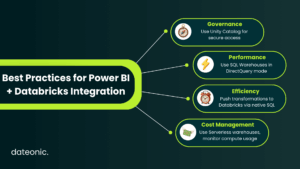
- Use Unity Catalog: Always leverage Unity Catalog for centralized data governance. It provides fine-grained, row-level security and data lineage, ensuring analysts only see the data they are authorized to access.
- Opt for SQL Warehouses: Use Databricks SQL warehouses in DirectQuery mode. This combination is optimized for high-performance, low-latency BI queries and is more efficient than using all-purpose clusters.
- Implement Native Queries: For complex transformations, you can pass native SQL queries directly to Databricks from Power BI, pushing the heavy computation to the Databricks engine.
- Monitor Costs: Be mindful of your compute usage. Use serverless warehouses to pay only for the queries you run, and scale resources appropriately for your workload.
Conclusion
You now know how to connect Power BI to Databricks, a key step in building a modern data stack. This integration empowers your business analysts to leverage a single source of truth, creating rich visualizations from massive, real-time datasets without data silos.
For tailored support in building robust data integrations, migrating to Databricks, or unlocking AI-driven insights, reach out to Dateonic. As a leading cloud data + AI consultancy, we help large companies empower their teams. Contact us to learn more.