
Have you ever struggled with tracking and processing new data files as they land in cloud storage—only to find your pipelines either missing data or wasting resources reprocessing everything?
Databricks Auto Loader solves this problem with an elegant, scalable solution: it incrementally processes only new files as they arrive, with zero manual tracking or complex scheduling required.
In this guide, I’ll walk you through what Auto Loader is, when to use it, and how to implement it step by step — with real code examples, best practices, and a visual comparison to traditional methods.
What Is Databricks Auto Loader
Databricks Auto Loader is a specialized file ingestion framework that enables incremental processing of new data files as they land in cloud storage. Unlike traditional batch processing approaches that require periodic full scans of data directories, Auto Loader intelligently tracks which files have been processed and only reads new data.
At its core, Auto Loader is built on Spark Structured Streaming, but with significant optimizations for file-based sources. It continuously monitors specified cloud storage locations and automatically detects new files, processing them efficiently without requiring manual intervention or complex scheduling logic.
Auto Loader supports two key modes of operation:
- Directory listing mode: Scans the directory for new files (simpler but less efficient for large directories)
- File notification mode: Uses cloud provider notifications to detect new files (more scalable for production)
CAVEAT: Auto Loader Data Type Inference Limitations
While Auto Loader offers powerful automatic schema inference capabilities, it’s important to be aware of a significant limitation: it often incorrectly identifies data types when using automatic inference.
For example:
- Date formats like “dd-mm-yyyy” may be interpreted as strings instead of timestamps
- Currency values like “2453.23$” might be read as strings instead of double values
- Numeric IDs with leading zeros might be treated as strings
These misidentifications can lead to downstream issues when querying or transforming your data, especially when performing aggregations or calculations that require specific data types.
Fortunately, Auto Loader allows you to use a predefined schema to explicitly specify column data types, avoiding these inference issues. Here’s how you can implement this approach:
# Define your schema explicitly
from pyspark.sql.types import StructType, StructField, StringType, DoubleType, TimestampType
customer_schema = StructType([
StructField(“customer_id”, StringType(), True),
StructField(“customer_name”, StringType(), True),
StructField(“signup_date”, TimestampType(), True),
StructField(“account_balance”, DoubleType(), True)
])
# Create the Auto Loader stream with explicit schema
customer_stream = spark.readStream \
.format(“cloudFiles”) \
.option(“cloudFiles.format”, “json”) \
.option(“cloudFiles.schemaLocation”, checkpoint_location) \
.schema(customer_schema) # Apply the predefined schema
.load(cloud_file_path)
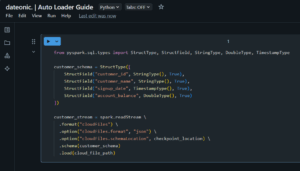
By using a predefined schema, you ensure data consistency and avoid the pitfalls of automatic type inference.
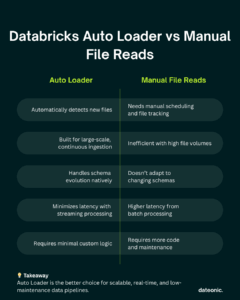
When to Use Auto Loader vs. Manual File Reads
Choosing between Auto Loader and traditional file reading approaches depends on your specific data requirements and ingestion patterns:
| Aspect | Auto Loader | Manual File Reads |
|---|---|---|
| Data Arrival Pattern | Continuous, incremental file arrivals | Well-defined batch windows with complete datasets |
| File Volume | Large number of files (thousands+) | Smaller, manageable file counts |
| Processing Frequency | Near real-time requirements | Scheduled batch processing is sufficient |
| Schema Evolution | Changing schemas over time | Stable, unchanging schemas |
| Infrastructure Complexity | Simplified file tracking | Custom file tracking solutions required |
| Resource Efficiency | Optimized for incremental processing | May reprocess already ingested data |
| Implementation Effort | Minimal code, declarative setup | Custom tracking logic needed |
| End-to-End Latency | Reduced latency from data arrival to insights | Higher latency with scheduled batch jobs |
Auto Loader is particularly advantageous when:
- Files arrive continuously at unpredictable intervals
- You need to minimize the time between data arrival and processing
- Your source directory contains a large number of files
- You want to avoid building custom file-tracking mechanisms
- Schema evolution needs to be handled gracefully
Creating a Simple Auto Loader Stream
Let’s implement a basic Auto Loader stream to ingest JSON customer data into Databricks:
# Import necessary libraries
from pyspark.sql.functions import col, current_timestamp
# Define the input and checkpoint locations
cloud_file_path = “/mnt/landing/customer_data/”
checkpoint_location = “/mnt/checkpoints/customer_data_ingest/”
# Create the Auto Loader stream
customer_stream = spark.readStream \
.format(“cloudFiles”) \
.option(“cloudFiles.format”, “json”) \
.option(“cloudFiles.schemaLocation”, checkpoint_location) \
.option(“cloudFiles.inferColumnTypes”, “true”) \
.load(cloud_file_path)
# Add ingestion metadata
customer_stream_enriched = customer_stream \
.withColumn(“ingest_timestamp”, current_timestamp()) \
.withColumn(“source_file”, col(“_metadata.file_name”))
# Write the enriched data to a Delta table
stream_query = customer_stream_enriched.writeStream \
.format(“delta”) \
.option(“checkpointLocation”, checkpoint_location) \
.partitionBy(“signup_date”) \
.trigger(processingTime=”5 minutes”) \
.table(“customer_data_bronze”)
# Display the active stream
display(stream_query)
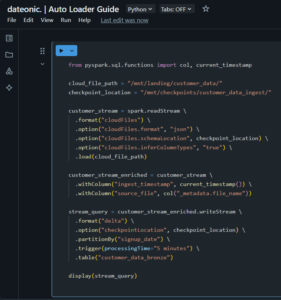
This basic Auto Loader implementation does several important things:
- Designates the source directory to monitor for new files
- Specifies the file format (JSON in this case)
- Sets up automatic schema inference and tracking
- Adds metadata columns for tracking and auditing
- Configures the stream to write to a Delta table
- Establishes a processing trigger interval (5 minutes)
Writing to a Delta Table
Auto Loader seamlessly integrates with Databricks Delta tables for reliable and performant data storage:
# Define a more complex Auto Loader with transformations
orders_stream = spark.readStream \
.format(“cloudFiles”) \
.option(“cloudFiles.format”, “parquet”) \
.option(“cloudFiles.schemaLocation”, “/mnt/checkpoints/orders_schema”) \
.option(“cloudFiles.schemaEvolutionMode”, “addNewColumns”) \
.option(“cloudFiles.maxFilesPerTrigger”, 1000) \
.load(“/mnt/landing/orders/”)
# Apply transformations
transformed_orders = orders_stream \
.filter(col(“order_status”) != “CANCELLED”) \
.withColumn(“processing_timestamp”, current_timestamp()) \
.withColumn(“year”, year(col(“order_date”))) \
.withColumn(“month”, month(col(“order_date”))) \
.withColumn(“day”, dayofmonth(col(“order_date”)))
# Write to a Delta table with partitioning
query = transformed_orders.writeStream \
.format(“delta”) \
.outputMode(“append”) \
.option(“checkpointLocation”, “/mnt/checkpoints/orders_delta”) \
.partitionBy(“year”, “month”, “day”) \
.trigger(processingTime=”2 minutes”) \
.table(“orders_silver”)

Key aspects of the Delta table integration:
- Checkpointing: Maintains processing state across restarts
- Partitioning: Optimizes query performance and data management
- Schema evolution: Gracefully handles schema changes
- Output modes: Controls how data is written (append, complete, update)
- Processing triggers: Defines how frequently to process new data
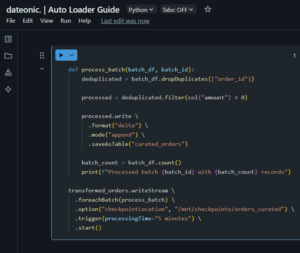
For advanced use cases, Auto Loader can also be used with foreachBatch to implement custom logic:
def process_batch(batch_df, batch_id):
# Deduplicate data
deduplicated = batch_df.dropDuplicates([“order_id”])
# Apply business logic
processed = deduplicated.filter(col(“amount”) > 0)
# Write to Delta table
processed.write \
.format(“delta”) \
.mode(“append”) \
.saveAsTable(“curated_orders”)
# Log batch metrics
batch_count = batch_df.count()
print(f”Processed batch {batch_id} with {batch_count} records”)
# Configure the stream with foreachBatch
transformed_orders.writeStream \
.foreachBatch(process_batch) \
.option(“checkpointLocation”, “/mnt/checkpoints/orders_curated”) \
.trigger(processingTime=”5 minutes”) \
.start()
Best Practices
To get the most out of Auto Loader, consider these technical best practices:
1. Choose the Right Directory Notification Mode
For production systems with high volumes:
# Use cloud notification mode for scalability
.option(“cloudFiles.useNotifications”, “true”)
For development or smaller datasets:
# Use directory listing mode for simplicity
.option(“cloudFiles.useNotifications”, “false”)

2. Configure Schema Handling Appropriately
# For evolving schemas, add new columns automatically
.option(“cloudFiles.schemaEvolutionMode”, “addNewColumns”)
# For strict schemas, enforce schema validation
.option(“cloudFiles.schemaEvolutionMode”, “none”)

3. Optimize Performance with Batching Controls
# Limit files per trigger for consistent processing times
.option(“cloudFiles.maxFilesPerTrigger”, 1000)
# Control maximum bytes per trigger
.option(“cloudFiles.maxBytesPerTrigger”, “1g”)

4. Implement Robust Error Handling
# Configure error handling for corrupt files
.option(“cloudFiles.validateOptions”, “true”)
.option(“cloudFiles.schemaEvolutionMode”, “rescue”)
.option(“cloudFiles.rescuedDataColumn”, “_rescued_data”)

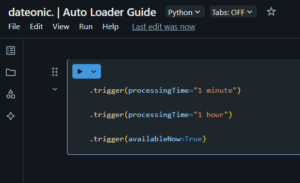
5. Set Appropriate Trigger Intervals
Balance latency and efficiency:
# For near real-time use cases
.trigger(processingTime=”1 minute”)
# For batched processing
.trigger(processingTime=”1 hour”)
# For available-as-soon-as-possible processing
.trigger(availableNow=True)
6. Partition Source and Target Data Effectively
# Partition source data by date for efficient processing
# /mnt/landing/orders/year=2025/month=05/day=14/file1.parquet
# Partition target Delta tables
.partitionBy(“year”, “month”)

7. Monitor Your Auto Loader Streams
# Get active streams
for stream in spark.streams.active:
print(f”Stream ID: {stream.id}, Name: {stream.name}”)
print(f”Status: {stream.status}”)
# Check stream metrics
stream_metrics = spark.streams.active[0].lastProgress
print(f”Input rate: {stream_metrics[‘inputRowsPerSecond’]} rows/sec”)
print(f”Processing rate: {stream_metrics[‘processedRowsPerSecond’]} rows/sec”)

8. Configure Reliable Checkpointing
# Use a dedicated, persistent storage location
.option(“checkpointLocation”, “/mnt/reliable-storage/checkpoints/stream-name”)
# Consider checkpointing interval for recovery time
.option(“checkpointInterval”, “10 batches”)

9. Use Predefined Schemas for Data Type Accuracy
To avoid the data type inference issues mentioned in the caveat:
# Define explicit schema
from pyspark.sql.types import *
order_schema = StructType([
StructField(“order_id”, StringType(), False),
StructField(“order_date”, TimestampType(), False),
StructField(“customer_id”, StringType(), False),
StructField(“amount”, DoubleType(), True),
StructField(“status”, StringType(), True)
])
# Apply explicit schema to Auto Loader
orders_stream = spark.readStream \
.format(“cloudFiles”) \
.option(“cloudFiles.format”, “csv”) \
.schema(order_schema) \
.load(“/mnt/landing/orders/”)

What’s Next?
To further enhance your Databricks data engineering capabilities, explore these related topics:
- What is Medallion Architecture in Databricks and How to Implement It – Learn how Auto Loader fits into the broader medallion architecture pattern
- What are Workflows in Databricks and How to They Work – Discover how to orchestrate Auto Loader jobs within workflows
- What is Unity Catalog and How It Keeps Your Data Secure – Explore data governance implications when using Auto Loader
- Databricks Jobs: Orchestrating Workflows – Learn how to schedule and manage your Auto Loader jobs effectively
Take Your Data Engineering to the Next Level
Ready to implement Auto Loader in your data engineering workflows? Our team of certified Databricks experts can help you design, implement, and optimize your data ingestion pipelines.
Contact us to learn how we can help you maximize the value of your data assets with Databricks Auto Loader.