
Legacy file mounts and manual copy scripts often turn data lakes into maintenance nightmares. To build a reliable Lakehouse, engineers need a pipeline that handles schema drift and high volumes without constant intervention.
In this guide, I detail the specific technical steps to ingest data Azure Data Lake to Databricks, moving away from outdated methods to a secure, automated architecture using Unity Catalog and Auto Loader.
Prerequisites
Before configuring the pipeline, ensure the following resources and permissions are in place:
- Azure Subscription and Resources: An active Azure account with an Azure Data Lake Storage Gen2 (ADLS Gen2) account and Hierarchical Namespace enabled.
- Databricks Workspace: A Premium Azure Databricks workspace (required for Unity Catalog governance).
- Authentication Setup: A Microsoft Entra ID (formerly Azure AD) service principal to manage secure, non-interactive access.
- Tools and Runtime: Databricks Runtime 13.3 LTS or above with access to notebooks and clusters.
- Permissions: READ FILES and WRITE FILES permissions on the Unity Catalog external locations or volumes.
Step 1: Securely Connect Databricks to Azure Data Lake Storage
Security is the priority when connecting compute to storage. Modern Databricks architectures leverage Unity Catalog to manage access via external locations, replacing legacy mount points.
- Overview of Unity Catalog: Unity Catalog centralizes access control. It allows you to define „External Locations” that govern access to specific ADLS paths without exposing credentials to users. Read more on why this is critical in our article on Why Unified Data and AI Governance Matters More Than Ever.
- Create Service Principal: Register a new app in Microsoft Entra ID. Record the Application (client) ID, Directory (tenant) ID, and generate a client secret.
- Configure Access: Assign the Storage Blob Data Contributor role to the service principal on the target ADLS Gen2 container.
- Network Considerations: For production, ensure traffic flows securely by enabling private endpoints or VNet injection.
Python Code Snippet (Service Principal Configuration):
# Define configuration for Service Principal (OAuth 2.0)
service_credential = dbutils.secrets.get(scope=„<scope-name>”, key=„<service-credential-key>”)
spark.conf.set(„fs.azure.account.auth.type.<storage-account>.dfs.core.windows.net”, „OAuth”)
spark.conf.set(„fs.azure.account.oauth.provider.type.<storage-account>.dfs.core.windows.net”, „org.apache.hadoop.fs.azurebfs.oauth2.ClientCredsTokenProvider”)
spark.conf.set(„fs.azure.account.oauth2.client.id.<storage-account>.dfs.core.windows.net”, „<application-id>”)
spark.conf.set(„fs.azure.account.oauth2.client.secret.<storage-account>.dfs.core.windows.net”, service_credential)
spark.conf.set(„fs.azure.account.oauth2.client.endpoint.<storage-account>.dfs.core.windows.net”, „https://login.microsoftonline.com/<tenant-id>/oauth2/token”)
Step 2: Set Up Your Databricks Environment
With credentials ready, configure the Databricks environment to recognize and interact with the data lake.
- Create a Cluster: Launch a cluster with the latest LTS runtime. Select „Credential Passthrough” or Unity Catalog access modes based on your security model.
- Unity Catalog Setup: Define a storage credential using the Service Principal, then create an External Location pointing to the ADLS path (abfss://<container>@<storage>.dfs.core.windows.net/).
- Verify Connectivity: Run a list command in a notebook to confirm Databricks can access the files.
Verification Command:
# List files using the Unity Catalog volume path or ABFSS path
display(dbutils.fs.ls(„abfss://data@myadls.dfs.core.windows.net/raw-zone/”))
- Best Practice: Avoid dbutils.fs.mount. Opt for direct ABFS driver integration or Unity Catalog volumes for better lineage.
Step 3: Ingest Data Using Auto Loader
Auto Loader is the standard mechanism for ingesting files into Databricks. It processes new data files as they arrive in ADLS and manages state automatically.
- Introduction to Auto Loader: Auto Loader (cloudFiles) simplifies ingestion by detecting new files and handling schema changes, suitable for both streaming and batch jobs.
- Configure Pipeline: Implement this using Lakeflow Spark Declarative Pipelines to define end-to-end ingestion and transformation flows with simple SQL or Python declarations.
- Handle Formats: Auto Loader natively supports JSON, CSV, Parquet, and Avro. It infers schema automatically, preventing pipeline failures due to upstream data changes.
- Optimization Tips: Enable file notification mode for large directories to reduce listing overhead. Partition data logically to optimize downstream queries. For structuring advice, refer to Medallion Architecture in Databricks: Best Practices and Examples.
Code Example (Auto Loader with Python):
# Read from ADLS using Auto Loader
df = (spark.readStream.format(„cloudFiles”)
.option(„cloudFiles.format”, „json”)
.option(„cloudFiles.schemaLocation”, „/tmp/schema/orders”)
.load(„abfss://data@myadls.dfs.core.windows.net/incoming/orders/”))
# Write to a Delta Table in Unity Catalog
(df.writeStream.format(„delta”)
.option(„checkpointLocation”, „/tmp/checkpoints/orders”)
.table(„main.sales.orders_raw”))
Step 4: Alternative Ingestion Methods
While Auto Loader is efficient for file-based ingestion, other methods suit specific constraints.
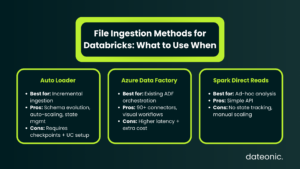
- Using Azure Data Factory (ADF): Useful for orchestration if ADF is already part of the operational stack. Use the Copy Activity to move data to Delta Lake format.
- Direct Spark Reads: Use the standard DataFrame API (spark.read.parquet) for one-off analysis or ad-hoc ingestion where state management isn’t required.
- Streaming with Structured Streaming: For low-latency needs, hook directly into real-time streams, though Auto Loader often wraps this capability for files.
Comparison Table:
| Method | Use Case | Pros | Cons |
|---|---|---|---|
| Auto Loader | Incremental Batch/Stream | Schema Evolution, Auto-Scale, State Management | Requires Unity Catalog/Checkpoints setup |
| ADF Integration | Hybrid ETL Orchestration | 90+ Connectors, Visual Scheduling | Additional Service Cost, Higher Latency |
| Spark Direct | Ad-Hoc Queries | Simple, No Extra Tools | Manual Scaling, No State Tracking |
For a deeper look at platform differences, see Azure Databricks vs Databricks: Key Differences Explained.
Best Practices and Troubleshooting
To maintain a healthy pipeline, adhere to these technical standards:
- Data Governance: Implement Unity Catalog for end-to-end lineage, which is vital for debugging.
- Performance Tuning: Use the Photon engine for faster query execution during ingestion. Monitor pipelines using Ganglia or Databricks System Tables.
- Common Issues: 403 Forbidden errors usually indicate Service Principal permission gaps or firewall blocks on the ADLS networking tab.
- Security: Rotate Service Principal secrets regularly. Use Role-Based Access Control (RBAC) to limit modification rights on ingestion pipelines.
- Scalability: For petabyte-scale data, utilize Delta Lake’s Z-Ordering. Learn more in How Delta Lake Solves Common Data Lake Challenges.
Cost management is crucial in high-scale ingestion. Check our guide on The Complete Guide to Databricks Cost Optimization to control cloud spend.
Conclusion
Correctly ingesting data from Azure Data Lake to Databricks determines the stability of your downstream analytics. By using Unity Catalog for security and Auto Loader for automated file processing, you build pipelines that resist failure and scale with your data. These steps provide the foundation for a functional Lakehouse architecture.
Ready to scale your data engineering? Partner with Dateonic, the Databricks consulting experts, for custom implementation and optimization. Contact us to schedule a free consultation and transform your data workflows today.