
Databricks’ pay-per-second pricing model gives data teams remarkable flexibility – but without proper visibility, it can just as easily produce runaway spend. If you’re trying to monitor Databricks usage and costs effectively, you’re dealing with more than one bill. DBU charges come from Databricks, while cloud infrastructure costs land separately in your AWS, Azure, or GCP account. Without a deliberate monitoring setup, the gap between what you expect to pay and what you actually pay can grow fast.
This guide walks you through a practical, step-by-step approach: from a quick high-level overview to granular query-level analysis, budget alerts, tagging, and cluster policies that prevent overspend before it happens.
What You’re Actually Paying For
Before touching any tool, it’s worth being clear on what’s generating the bill.
Databricks charges in DBUs (Databricks Units) – billed per second, per node, weighted by compute type and tier:
- All-Purpose compute – used for interactive notebooks and ad hoc work; typically runs at higher DBU rates (~$0.40–$0.55/DBU on Premium tiers).
- Jobs Compute – designed for scheduled ETL and batch pipelines; significantly cheaper (~$0.07–$0.15/DBU on Premium tiers).
- Serverless compute – the DBU rate bundles the VM cost (~$0.70/DBU in US regions), but scales automatically and can spike if left unmonitored.
On top of DBUs, your cloud provider bills separately for the underlying VMs, storage, and networking – often adding 50–200% on top of DBU charges.
The key takeaway: you need to track both layers to understand your true spend. Monitoring one without the other gives you an incomplete picture. For a deeper dive into cutting the DBU side of the bill, see Dateonic’s guide on how to reduce DBU consumption in Databricks.
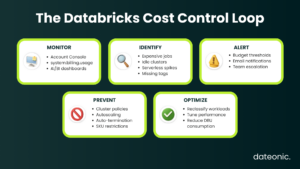
Step 1 – Use the Account Console for a High-Level Overview
The fastest starting point for any admin is the Databricks Account Console → Usage page.
From here you can:
- View DBU or dollar consumption aggregated across your entire account.
- Break it down by workspace or by SKU (job clusters, all-purpose clusters, SQL warehouses).
- See a chart of your top 9 workspaces by DBU, with a full breakdown in the table below.
If you’re running on Azure, pair the Account Console with Azure Cost Management. Tags applied in Databricks propagate to Azure’s billing layer, enabling tag-level cost analysis directly in the cloud portal. The key differences between Azure Databricks and Databricks are worth understanding if your team operates across both surfaces.
Limitation: The console gives a useful snapshot but not real-time granular data. For that, you need system tables.
Step 2 – Query system.billing.usage for Granular Monitoring
This is the most powerful native monitoring tool available – and the most underused.
To access it, you’ll need Unity Catalog enabled. Once system tables are turned on, system.billing.usage records every billing event with fields including:
- billing_origin_product – the product that generated the usage.
- usage_quantity – DBUs consumed.
- usage_metadata – job ID, cluster ID, warehouse ID.
- identity_metadata – the user or service principal responsible.
- custom_tags – the tags applied at the workspace or cluster level.
Practical queries you can run immediately:
- DBUs consumed per product this month.
- Usage broken down by SKU (e.g., isolating Photon compute spend).
- Join with system.compute.clusters to rank cluster owners by total DBU consumption.
- Join with system.workflows.jobs to calculate per-job spend.
Databricks recommends building AI/BI dashboards on top of this table. Pre-built, customizable dashboards can be imported by account admins into any Unity Catalog workspace, giving your team an always-on cost reporting layer without writing SQL every time.
Getting Unity Catalog properly configured is a prerequisite for system tables. Dateonic’s Unity Catalog implementation services can accelerate that foundation significantly.
Step 3 – Set Up Budget Alerts (The Most Overlooked Step)
Monitoring tells you what happened. Alerts tell you before it’s too late to act.
The Budgets feature in the Account Console lets you set financial targets filtered by workspace, team, project, or SKU. Best practice is to configure alert thresholds at multiple points:
- 50% – early warning; review recent activity.
- 75% – investigate and consider scaling back.
- 90% – take action before the budget is exhausted.
Email notifications fire when each threshold is crossed, preventing bill shock at month-end.
For serverless compute, use Budget Policies to tag serverless usage to specific users, groups, or projects. Without this, serverless spend is unattributed and effectively invisible in your cost breakdowns. The Budgets API is also available for teams that want to manage alert configuration programmatically.
Step 4 – Implement Tagging for Cost Attribution
Without tags, monitoring data tells you how much you spent – but not who spent it or why.
Tags are key:value pairs applied to workspaces, clusters, SQL warehouses, and pools. They propagate to both the custom_tags column in system.billing.usage and to your cloud provider’s billing console.
A minimum recommended tagging schema to start with:
- Business_Unit – e.g., Analytics, Data Engineering, ML Platform
- Project – e.g., CRM_Pipeline, Fraud_Detection
- Environment – dev / qa / prod
One critical rule: Start tagging from day one. Tags cannot be retroactively applied to past usage events. Every untagged usage event is permanently invisible in team-level or project-level cost reports.
For serverless workloads, assign Serverless Usage Policies so user activity is automatically attributed. Scheduling a regular housekeeping job to audit and clean up tags is also worth building into your operational cadence – tag drift compounds over time.
Step 5 – Enforce Cluster Policies as a Cost Guardrail
Monitoring shows you what happened. Policies prevent the problem in the first place.
By default, every user in a Databricks workspace has unrestricted cluster creation rights. That is a significant cost risk in any team larger than a handful of engineers. Cluster Policies address this by letting admins enforce:
- Auto-termination timeouts: (Recommended: 1–5 minutes for Serverless SQL Warehouses; immediate termination for job clusters post-completion).
- Instance size limits: Preventing users from spinning up oversized nodes for lightweight tasks.
- SKU restrictions: Routing batch jobs to Jobs Compute rather than All-Purpose clusters.
- Mandatory tagging: Ensuring every cluster carries the required attribution tags from the moment it’s created.
Enabling autoscaling alongside these policies lets clusters match actual workload demand rather than running at peak provisioned capacity. Together, monitoring and policies form a complete cost control loop – one you can read more about in Dateonic’s Databricks performance tuning services overview.
Quick Reference: Databricks Monitoring Tools
| Tool | Best For |
|---|---|
| Account Console | High-level spend overview across workspaces |
| system.billing.usage | Granular, query-level DBU analysis |
| AI/BI Dashboards | Visual cost reporting and trend spotting |
| Budget Alerts | Proactive threshold notifications |
| Budget Policies | Serverless usage attribution |
| Cluster Policies | Preventing overspend before it happens |
| Azure Cost Management | Tag-level analysis on Azure deployments |
From Monitoring to Optimization
Knowing where costs are high is not the same as fixing them. Monitoring is the foundation – but acting on that data requires understanding which workloads are using the wrong compute tier, which clusters lack auto-termination, and which pipelines are burning DBUs on inefficient data scans.
For further reading on the optimization side of this equation:
- Databricks’ official system tables documentation covers schema details and enablement steps.
- The Databricks pricing page provides current DBU rates by compute type and cloud region.
- Microsoft’s Azure Cost Management documentation is the reference for tag-based analysis on Azure deployments.
If your team is at the stage where the monitoring is in place but the cost numbers still aren’t moving in the right direction, that’s where Databricks consulting from Dateonic becomes practical. Dateonic works with engineering teams across manufacturing, financial services, and logistics to translate usage data into concrete optimization actions – from workload reclassification and cluster policy design to full governance frameworks built around Unity Catalog.
You can also explore common Databricks implementation challenges that teams frequently encounter when scaling their platform, many of which tie directly back to ungoverned compute and unmonitored spend.
Contact us to explore how expert Databricks consulting can turn your usage data into real savings.