
Databricks Notebooks are interactive documents that combine code execution, visualization, and narrative text, making them essential tools for data analytics and machine learning workflows. They serve as versatile environments for data exploration, model development, and collaboration among data teams.
In this article, I walk you through what Databricks Notebooks are, how to create and use them effectively, and where they fit within real-world data projects.
What Is a Databricks Notebook?
A Databricks Notebook is an interactive computing environment that allows you to write and execute code, visualize results, and document your work in a single interface. These notebooks support multiple programming languages including:
- Python (with PySpark)
- SQL
- Scala
- R
Each notebook consists of cells that can contain either code or markdown text. This flexibility enables you to mix executable code with rich documentation, creating self-explanatory data workflows.
Notebooks are stored in the Databricks workspace and can be organized in folders for better project management. They integrate seamlessly with Databricks Workflows and can be scheduled as jobs, making them crucial components of data pipelines.
Key Features
Databricks Notebooks offer several powerful features that enhance productivity and collaboration:

These features make notebooks particularly valuable for data transformation projects and iterative development of machine learning models.
How to Create Your First Notebook
Creating a notebook in Databricks is straightforward:
1. Navigate to your workspace:
-
- Log in to your Databricks environment
- In the left sidebar, locate and click on “Workspace”

2. Create a new notebook:
-
- Click the “Create” button in the top right corner
- Select “Notebook” from the dropdown menu

3. Configure notebook settings:
-
- Enter a name for your notebook
- Select your default language (Python, SQL, Scala, or R)
- Choose a cluster to attach the notebook to
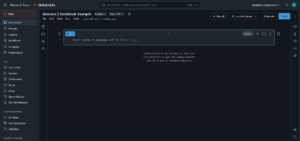
4. Write your first cell:
-
- For a Python notebook, try a simple command:
print(“Hello, Databricks!”)
-
- Press Shift+Enter to execute the cell

5. Add a markdown cell:
-
- Click the “+” button to add a new cell
- Change the cell type to “Markdown” using the dropdown
- Write some formatted text:
# My First Analysis
This notebook demonstrates basic Databricks functionality.
-
- Execute the cell to render the markdown

Your notebook is now ready for data analysis and exploration.
Simple Use Cases with Examples
Example 1: Data Loading and Basic Analysis
# Load a CSV file from cloud storage
df = spark.read.csv(“/mnt/data/sales.csv”, header=True, inferSchema=True)
# Display the first few rows
display(df)
# Get basic statistics
display(df.describe())
# Count records by category
display(df.groupBy(“category”).count())

Example 2: Creating Visualizations
# Create a bar chart
display(df.groupBy(“region”).sum(“sales”).orderBy(“sum(sales)”, ascending=False))

Example 3: Running SQL Queries
%sql
— Create a temporary view of our DataFrame
CREATE OR REPLACE TEMPORARY VIEW sales_data AS
SELECT * FROM parquet.`/mnt/data/sales`
— Run a SQL query
SELECT
category,
SUM(revenue) as total_revenue,
COUNT(DISTINCT customer_id) as customer_count
FROM sales_data
GROUP BY category
ORDER BY total_revenue DESC

Tips and Best Practices
1. Use meaningful cell structure:
-
- Break your notebook into logical sections with markdown headers
- Keep code cells focused on a single task
2. Leverage keyboard shortcuts to increase productivity:
-
- Shift+Enter: Run current cell and move to next
- Ctrl+Enter: Run current cell and stay
- Alt+Enter: Run current cell and insert new cell below
3. Parameterize your notebooks with widgets:
dbutils.widgets.text(“date”, “2025-01-01”, “Analysis Date”)
date = dbutils.widgets.get(“date”)
4. Document assumptions and decisions in markdown cells to make your analysis clear to others
5. Optimize cluster usage:
-
- Use appropriate cluster sizing for your workload
- Detach notebooks from clusters when not in use
- Check out our guide on Databricks performance techniques for more optimization tips
6. Version control your notebooks using Git integration or export them regularly
7. Set execution context at the beginning of notebooks to ensure consistency:
spark.conf.set(“spark.sql.shuffle.partitions”, 8)
When and Why to Use Notebooks in Projects
Notebooks are particularly valuable in these scenarios:
- Exploratory Data Analysis (EDA) – The interactive nature of notebooks makes them perfect for data exploration and hypothesis testing
- Prototyping ML models – Quickly iterate through different approaches and visualize results before productionizing
- Data cleaning and transformation – Document each step of your data preparation process, especially when implementing Medallion Architecture
- Creating reproducible research – Share complete analyses with code, explanations, and visualizations
- Teaching and documentation – Use notebooks to create interactive tutorials and onboarding materials
- Collaborative analysis – Work with team members on shared datasets with real-time updates
However, for production data pipelines that require robust error handling and scheduling, consider transitioning to Databricks Jobs after prototyping in notebooks.
What’s Next?
Now that you understand the basics of Databricks Notebooks, you might want to explore:
- Creating your first Databricks cluster to run your notebooks
- Understanding views in Databricks for more advanced data manipulation
- Implementing Unity Catalog to manage data access and governance
For a more comprehensive understanding of Databricks’ capabilities, check out our comparison of Databricks vs. Snowflake to see how these platforms differ.
Common Errors and Troubleshooting
Here are some typical issues you might encounter when working with Databricks Notebooks, along with their causes and solutions:
| Issue | Likely Cause | Solution |
|---|---|---|
| “Cluster not attached” error | Notebook not linked to a cluster | Attach an active cluster from the top bar |
| %sql not recognized | Language magic command missing | Prefix SQL cells with %sql |
| Slow performance | Too many shuffle partitions | Set spark.sql.shuffle.partitions appropriately |
These tips can save you time when debugging notebook behavior, especially in early-stage experimentation.
Ready to Master Databricks?
Contact our team of certified Databricks experts to accelerate your data and AI initiatives.