
Centralizing data and AI assets in Databricks Unity Catalog solves one problem but highlights another: managing who can access what at scale. Without a clear strategy, „unified” governance can become a complex mess of rules.
In this technical guide, I provide the „how-to” for effectively managing permissions in Unity Catalog. We will cover the permission model, step-by-step SQL and UI examples, and enterprise best practices for building a secure, auditable, and compliant data governance framework.
Understanding Permissions in Unity Catalog
Unity Catalog manages permissions through a clear hierarchical model. To manage permissions effectively, you first need to understand the three core components: securable objects, principals, and privilege types.
- Securable Objects: These are the assets in Unity Catalog that you can grant privileges on. The hierarchy flows from the top down:
- Metastore: The top-level container for all data assets.
- Catalog: A collection of schemas.
- Schema (Database): A collection of tables, views, and volumes.
- Table / View: The data itself.
- Volume: A collection of non-tabular data (e.g., files).
- Other objects like clusters and notebooks also have their own permission models.
- Principals: These are the identities that can be granted permissions.
- Users: Individual user accounts, typically identified by an email address (e.g., username@company.com).
- Groups: Collections of users (e.g., data_scientists, data_engineers). This is the recommended way to manage permissions at scale.
- Service Principals: Identities for automated jobs and services.
- Privilege Types & Ownership: Privileges define what a principal can do to an object.
- OWNERSHIP: Gives full control over an object, including the ability to grant permissions to others.
- USE CATALOG / USAGE: A prerequisite to access any objects within a catalog or schema.
- SELECT: Allows a principal to read data from a table or view.
- MODIFY: Allows a principal to change data (e.g., INSERT, UPDATE, DELETE).
- CREATE: Allows a principal to create new objects (like tables or schemas).
- CAN MANAGE / CAN RESTART / CAN ATTACH TO: These are privileges specific to compute resources like clusters, controlling who can manage, restart, or simply use them for their notebooks.
Setting Up Permissions: Step-by-Step Guide
In Unity Catalog, you can grant permissions using familiar SQL commands, the preferred method for automated and auditable enterprise environments, or through the UI for compute and notebook assets.
Granting Privileges with SQL
Using SQL is the most direct way to manage permissions in Unity Catalog. The GRANT command is your primary tool.
1. Granting Access to Catalogs and Schemas: Users need USAGE (or USE CATALOG) permission to even see or access a catalog or schema.
— Grant usage permission on a catalog to a group
GRANT USAGE ON CATALOG main_catalog TO `data_analysts`;
— Grant usage permission on a schema
GRANT USAGE ON SCHEMA main_catalog.analytics_schema TO `data_analysts`;
2. Granting Access to Tables and Views: To allow users to read data, you grant SELECT. To allow them to write data, you grant MODIFY.
— Grant read access to a specific table
GRANT SELECT ON TABLE main_catalog.analytics_schema.quarterly_revenue TO `data_analysts`;
— Grant write access to a specific table
GRANT MODIFY ON TABLE main_catalog.staging_schema.raw_logs TO `data_engineers`;
— Grant all permissions on a view
GRANT ALL PRIVILEGES ON VIEW main_catalog.analytics_schema.revenue_summary TO `data_scientists`;
Managing Inheritance
A key governance feature of Unity Catalog is its hierarchical model. Privileges granted at a higher level, like a schema, can apply to all child objects within it.
For example, to grant a group read access to all current and future tables in a specific schema, you can use a single command:
— Grant select permission on ALL tables in a schema
GRANT SELECT ON SCHEMA main_catalog.analytics_schema TO `data_analysts`;
This single command is much more efficient and scalable than granting permissions table by table.
Managing Cluster and Notebook Permissions (via UI)
While data permissions are handled by Unity Catalog, compute and code permissions are managed at the asset level.
- For Clusters:
- Navigate to the Compute section.
- Select the cluster you want to manage.
- Click on „Edit permissions”.
- Assign principals roles like Can Restart, Can Attach To, or Can Manage.
- For Notebooks and Folders:
- Navigate to the folder or Databricks Notebook in your workspace.
- Click on the Share (Permissions) button.
- Assign principals roles like Can Run, Can Edit, or Can Manage.
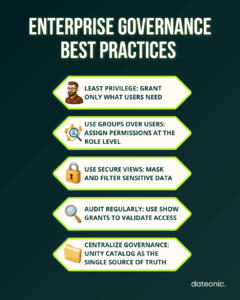
Best Practices for Governance in Enterprise Settings
A strong technical setup must be paired with strong governance policies. Here are the most critical best practices for enterprise-scale governance.
1. Implement the Least Privilege Principle
Always start by granting users the minimum permissions they need to perform their job. It’s much safer to add permissions as requested than to revoke overly broad permissions later. For example, grant SELECT instead of ALL PRIVILEGES to an analyst.
2. Prefer Groups Over Individuals for Scalable Governance
This is the single most important best practice for scalable management.
- Don’t assign permissions to individual users.
- Do create groups that reflect functional roles (e.g., data_engineers, finance_analysts, marketing_bi).
- Do assign permissions to these groups.
When a new employee joins, you simply add them to the appropriate group. When they leave or change roles, you remove them. This makes auditing and management exponentially easier.
3. Use Views to Control Access to Sensitive Data
Instead of giving users SELECT on a „wide” table with sensitive PII, create a secure view on top of it.
- The view can select only the non-sensitive columns.
- It can also mask data (e.g., xxxx-xxxx-1234 for a credit card).
- Then, you grant users SELECT on the view, not the base table.
This technique is essential for building secure Medallion Architectures where different users need access to different-quality tiers of data.
4. Audit Permissions Regularly
You must be able to answer the question, „Who has access to what?” Unity Catalog provides SQL commands to audit permissions.
— Show all grants for a specific group
SHOW GRANTS FOR `data_analysts`;
— Show all grants on a specific table
SHOW GRANTS ON TABLE main_catalog.analytics_schema.quarterly_revenue;
— Show grants on a catalog
SHOW GRANTS ON CATALOG main_catalog;
Running these checks regularly ensures your access policies align with your compliance requirements. For a deeper dive into data governance strategies, see this guide on proven techniques for Unity Catalog governance.
5. Leverage Unity Catalog for Centralized Enterprise Governance
The ultimate goal is to use Unity Catalog as the single source of truth for governance. This centralizes auditing and policy management, solving the „pitfall” of permissions becoming fragmented across different workspaces or, even worse, managed in external cloud IAM tools, which can be difficult to sync with your data.
Troubleshooting and Advanced Tips
Diagnosing Permission Errors: When a user can’t access an object, the first step is to check their effective privileges. Use the SHOW GRANTS FOR <principal> command to see exactly what permissions they have. Often, the issue is a missing USAGE privilege on a parent catalog or schema, which is a prerequisite for accessing any object within it.
Managing Compute: Remember that data access and compute access are separate. A user might have SELECT on a table but no CAN ATTACH TO permission on any running cluster, preventing them from querying the data.
| Issue | Likely Cause | How to Fix |
|---|---|---|
| User can’t see a catalog | Missing USAGE | GRANT USAGE ON CATALOG … |
| User can’t see schema | Missing USAGE on schema | Grant schema USAGE |
| User can’t query a table | Missing SELECT | Grant SELECT |
| User has table access but can’t run queries | No cluster access | Add “Can Attach To” on cluster |
| User still blocked | Privilege mismatch | Run SHOW GRANTS FOR <principal> |
Conclusion
Effectively managing permissions in Databricks Unity Catalog is the key to unlocking enterprise-wide data and AI at scale. By moving from legacy, complex access controls to a unified governance model, you address core enterprise concerns around security, compliance, and scalability.
By implementing best practices – such as using groups, applying the principle of least privilege, and auditing regularly, you can build a secure and well-governed lakehouse platform. This technical foundation allows your teams to collaborate and innovate with confidence, knowing that sensitive data is protected.
For tailored guidance on implementing Unity Catalog governance in your enterprise, contact Dateonic to leverage their expertise in Databricks solutions.